Changelog

Follow new updates and improvements to Zensimu.

June 1st, 2026

Setting up a multi-round supply chain simulation often means entering the same value over and over. The same lead time at every site, across all rounds, typed in one by one.

Not anymore. Bulk update lets you set any parameter to a specific value everywhere at once.

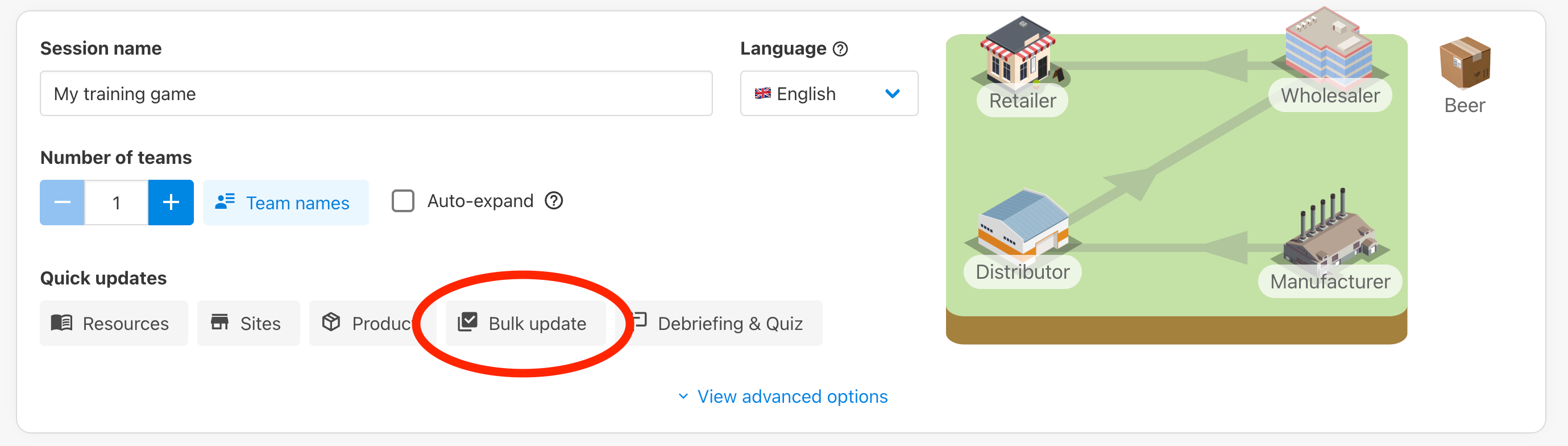
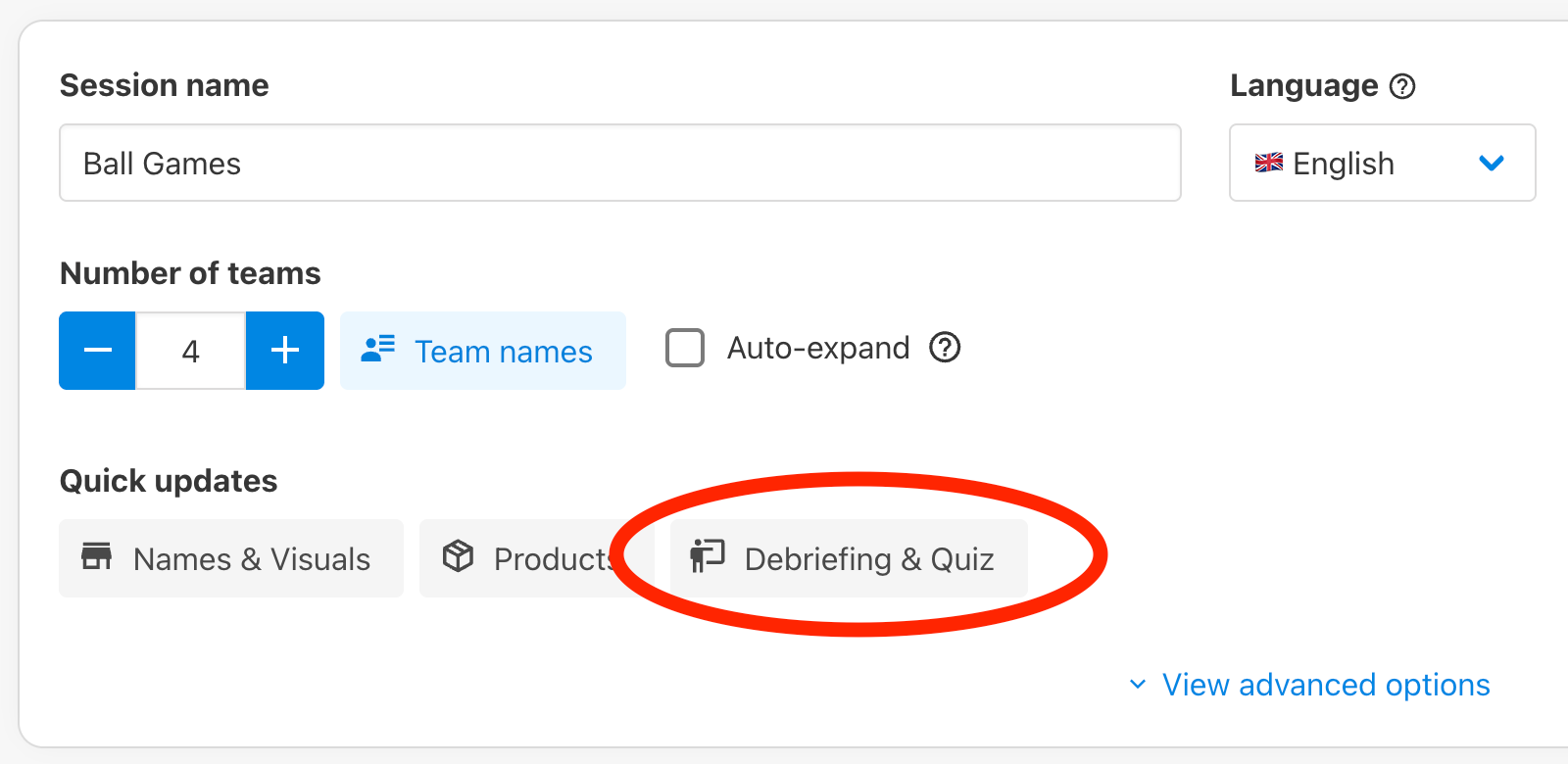
From the Quick updates section of your session or template settings, open Bulk update:

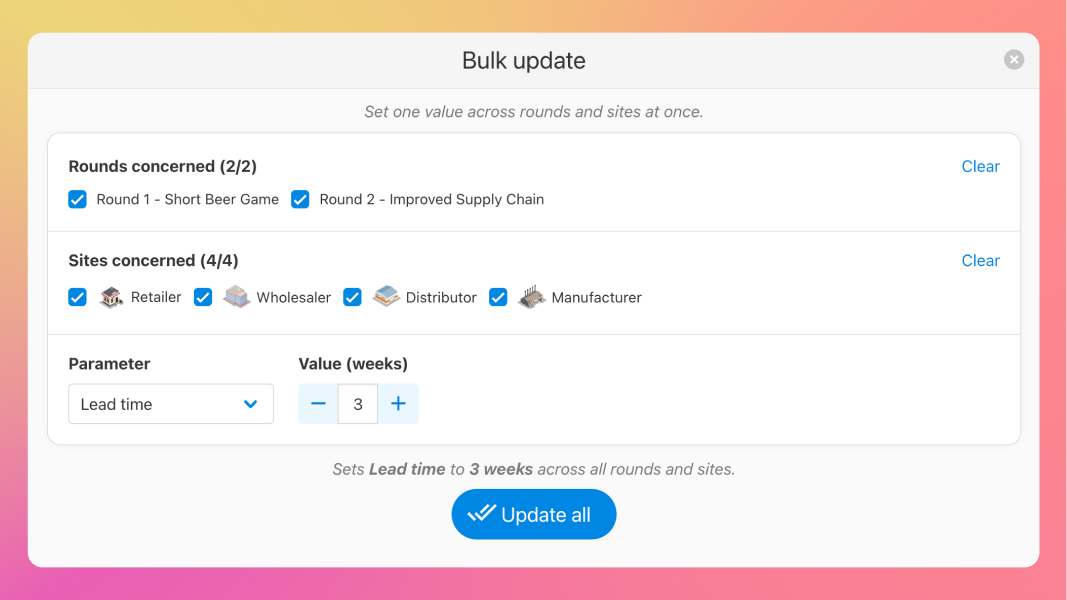
Then:

  • Pick which rounds and sites the change applies to (everything is selected by default),

  • Choose the parameter: lead time, starting stock, costs, and so on,

  • Set the value, and hit Update all.

That's it. The value is applied across every selected combination in one click, instead of dozens of manual edits.

Multi-product support

In sessions with more than one product, a Products selector appears too, letting you target the change by product as well as by round and site.

Don't forget to save

Like other session settings, a bulk update is applied to your working copy first. You can verify the setting was applied, then click Save session to make it permanent.

May 13th, 2026

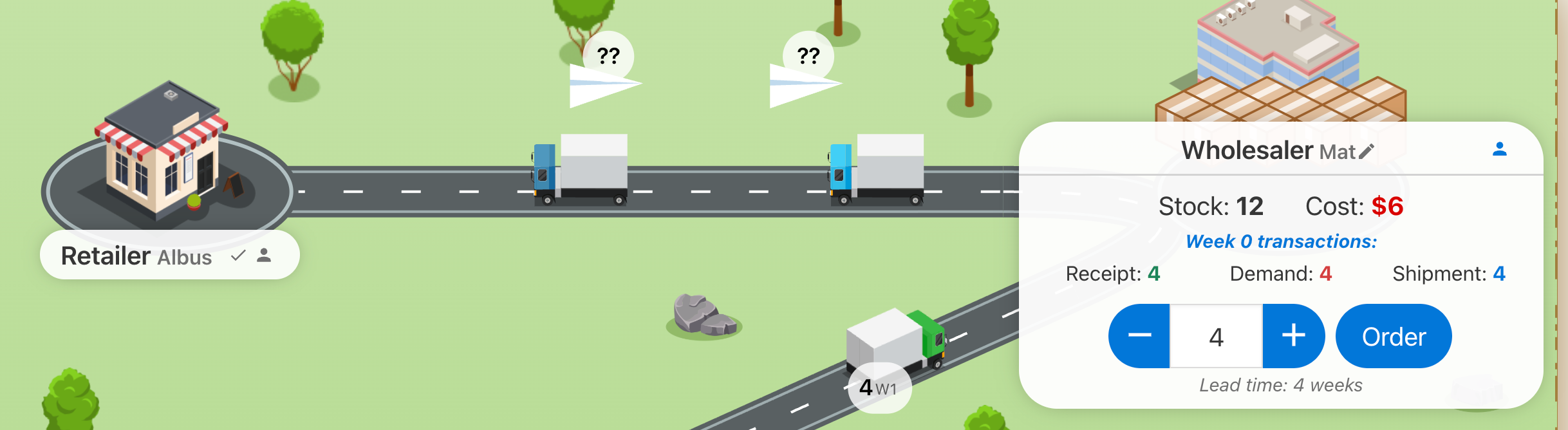
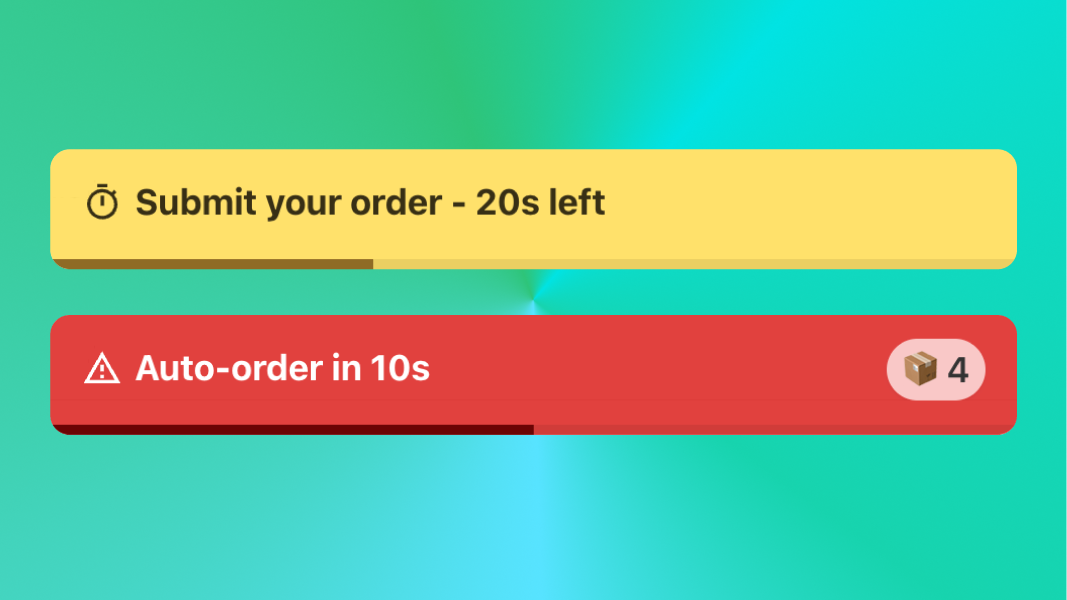
For Supply Chain / Beer Game simulations, you can already enable a timer, giving players a maximum duration to send their order.

This is very useful to ensure teams advance at a minimum pace. However, players sometimes had difficulty noticing the timer was active, or seeing what order the system had placed on their behalf when they ran out of time.

So we've redesigned the warning with a clearer popup message. The warning now appears in two stages as the timer counts down, with a progress bar showing time remaining:

  • Yellow - 30 seconds left: players are prompted to “Submit their order". They still have a bit of time to think.

  • Red - 10 seconds left: the toast turns red and now shows the exact auto-order quantity that will be placed players don't submit their order on time.

This two-stage approach preserves the decision-making pressure during the thinking window, then provides full transparency in the final seconds, so players can quickly override the system's default if needed.

Computer auto-play calculation

Want to learn more about how the computer calculates its order quantities? Read our detailed article here: https://docs.zensimu.com/article/32-computer-player-orders-calculation

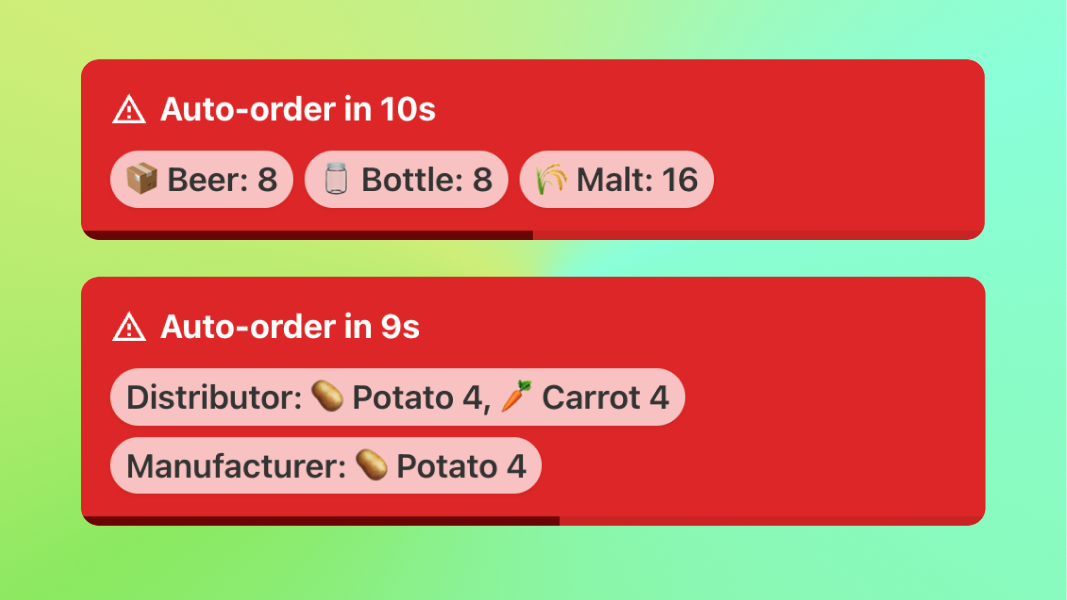
Multi-product and multi-role support

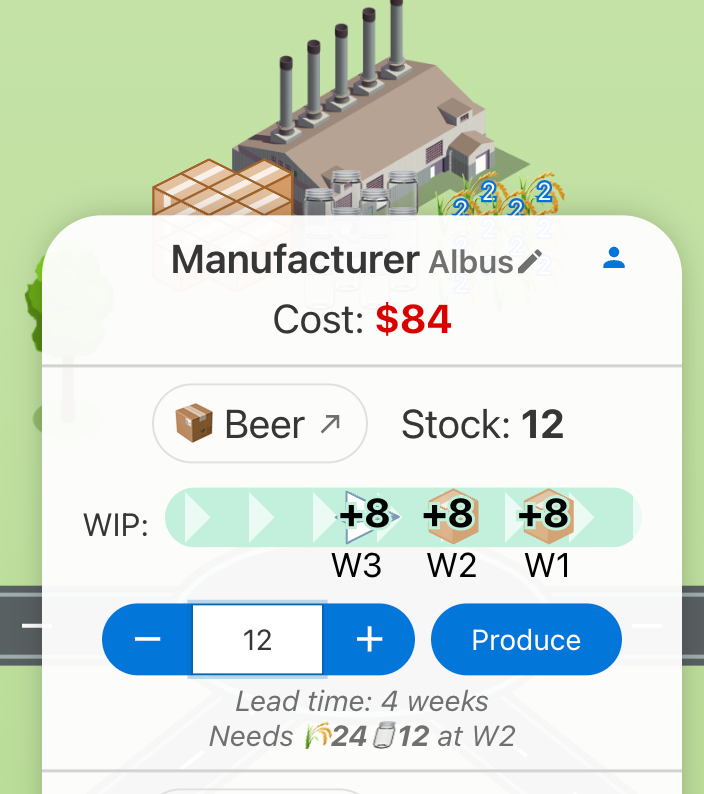
In games with complex networks (e.g. bill of material scenarios, or players controlling multiple roles), each product/role appears in its own pill with its computed quantity, during the final 10 seconds:

Timer notification for advanced games

April 20th, 2026

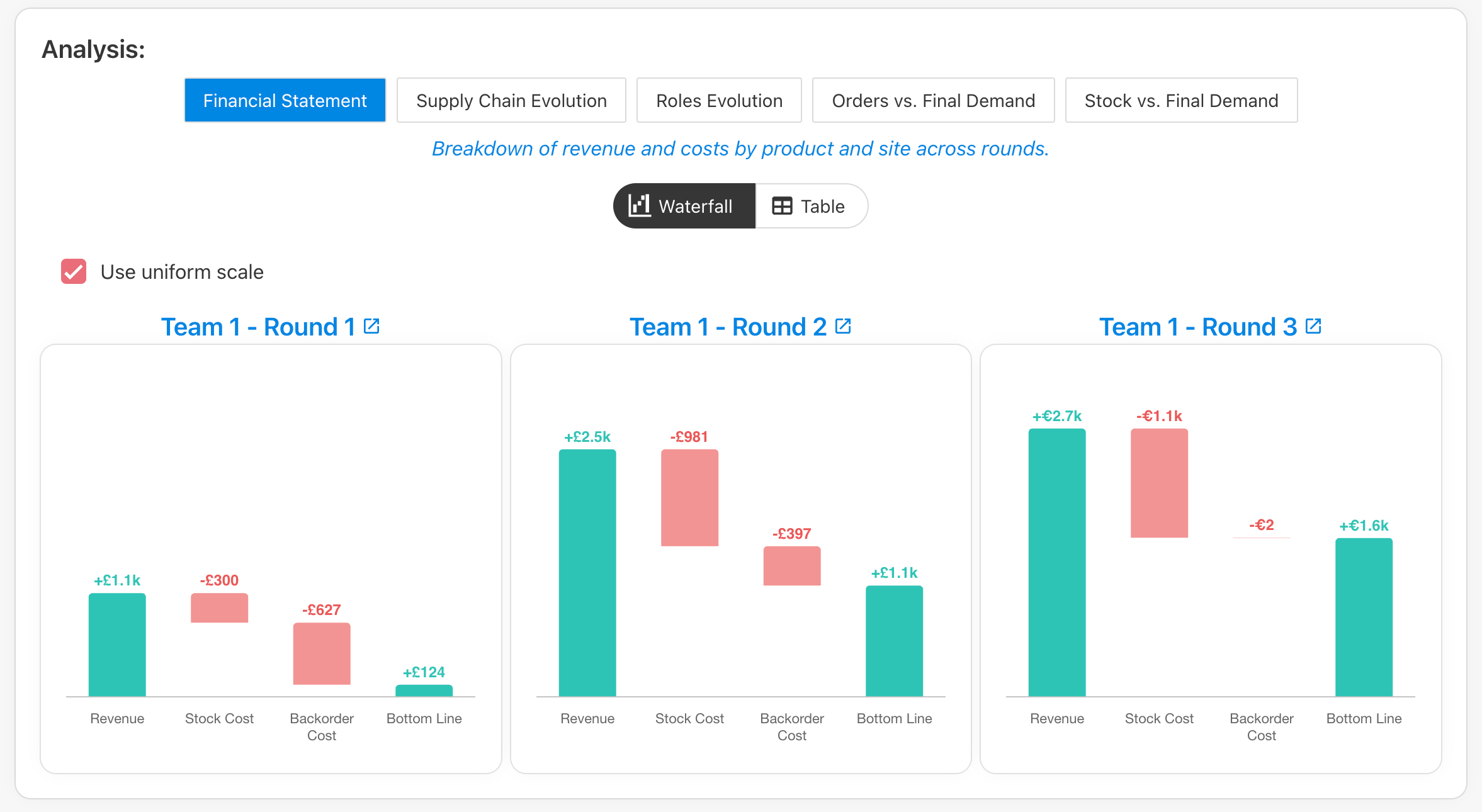
We've added a Financial Recap to Supply Chain simulation debriefings, and a new Waterfall view to the Lean Game's existing Financial Statement.

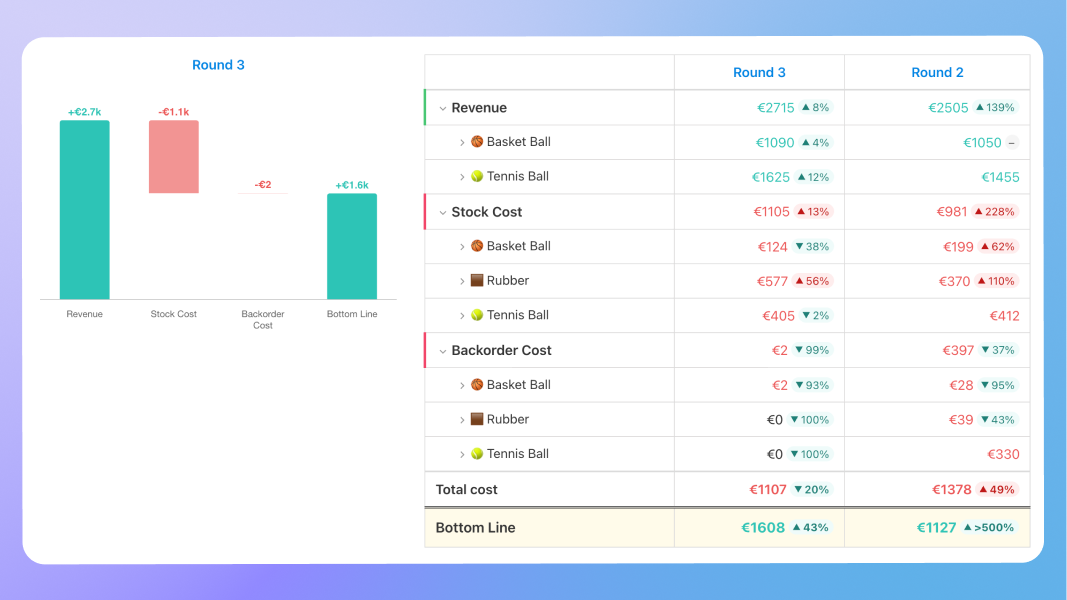
Supply Chain: Financial Recap

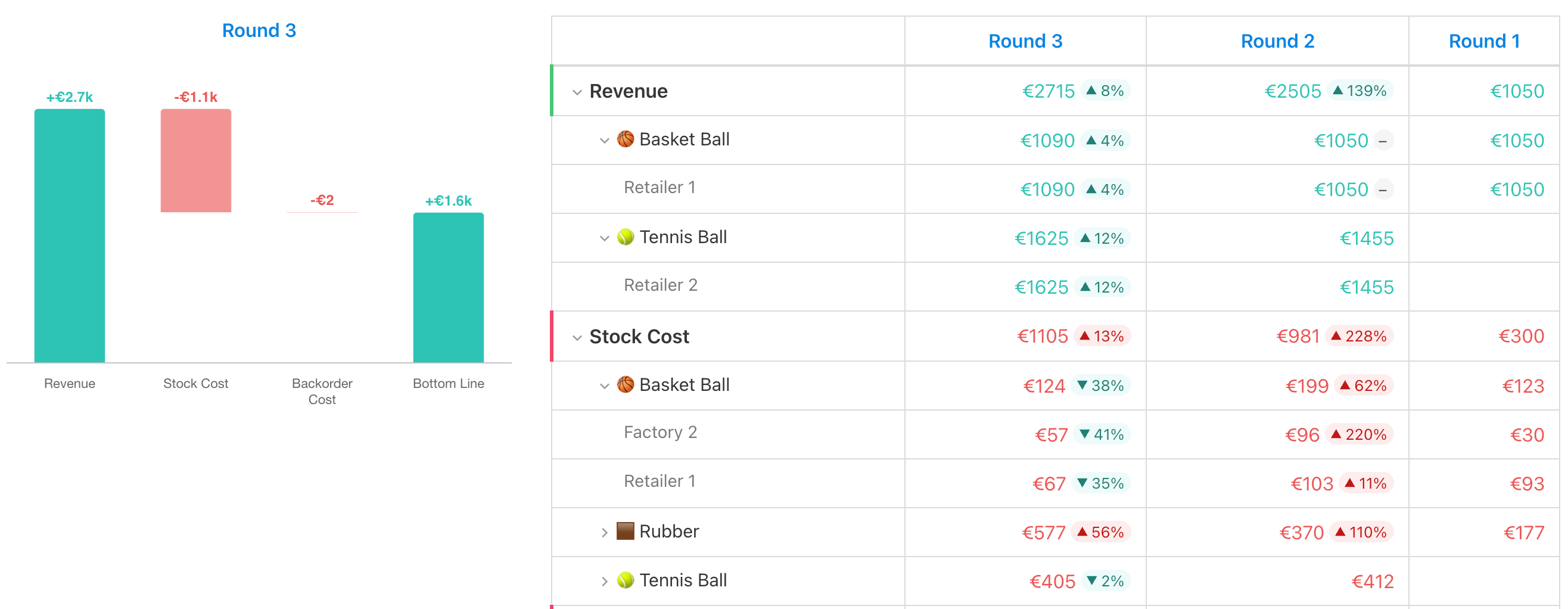
Supply Chain game debriefings now include a full P&L breakdown showing revenue and costs — with drill-down by product and by site.

On the player debriefing page, the Financial Recap can be displayed with two views side by side: a waterfall chart showing the P&L shape at a glance, and a detailed table. Each row is expandable by product (Ex: Tennis Ball, Basket Ball…), then by site (Retailer, Factory…).

The Financial Recap also appears on the Session Results page, so instructors can compare the financial profile of all teams. Switch between Waterfall and Table view depending on whether you want pattern recognition or precise numbers.

The waterfall makes it easy to spot at a glance which teams had a revenue problem vs. a cost problem — and whether their costs were driven by overstocking, backorders, or other.

How to activate

The new player/session financial views are only active when you have Revenue setup in a game (via unit prices at a site). You can toggle them via the Debriefing settings:

Lean Game: Waterfall view

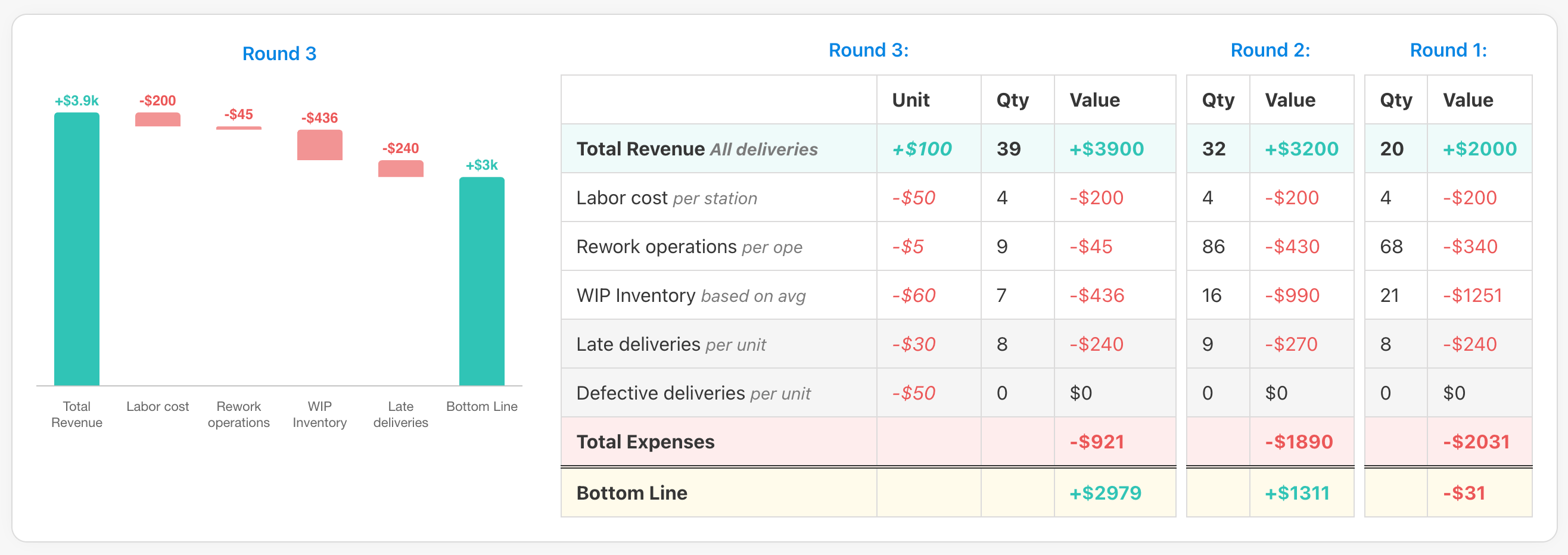
The Lean Game's Financial Statement now supports a Waterfall view alongside the existing table.

The waterfall is especially useful when comparing many teams/rounds — the shape of each chart tells the story before you read any numbers. A team with a tall WIP Inventory bar has a very different problem than one with a tall Rework bar, even if their bottom lines are similar.

April 13th, 2026

Don't know exactly how many participants will show up? You no longer need to guess the right number of teams when creating a session.

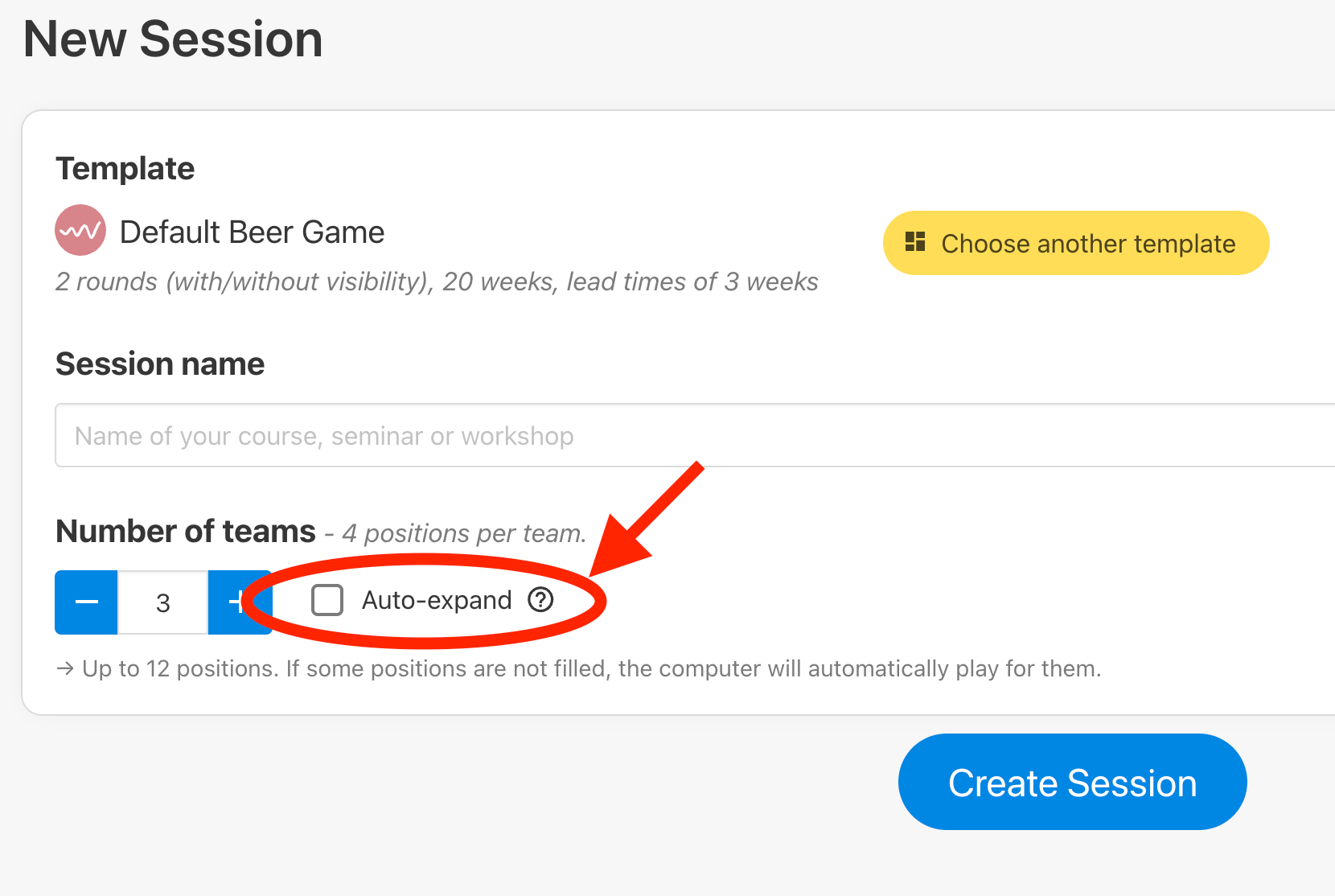
With Auto-expand teams enabled, new teams are automatically added when all existing spots are filled. Just set a starting number of teams and let the session grow as players join.

This is especially useful for:

  • Large workshops or conferences where attendance is uncertain,

  • Open/Asynchronous sessions where participants join at their own pace,

  • Any situation where you'd rather not manually add teams mid-session.

How to enable it:

Toggle the Auto-expand teams checkbox when creating a new session, or in the session settings:

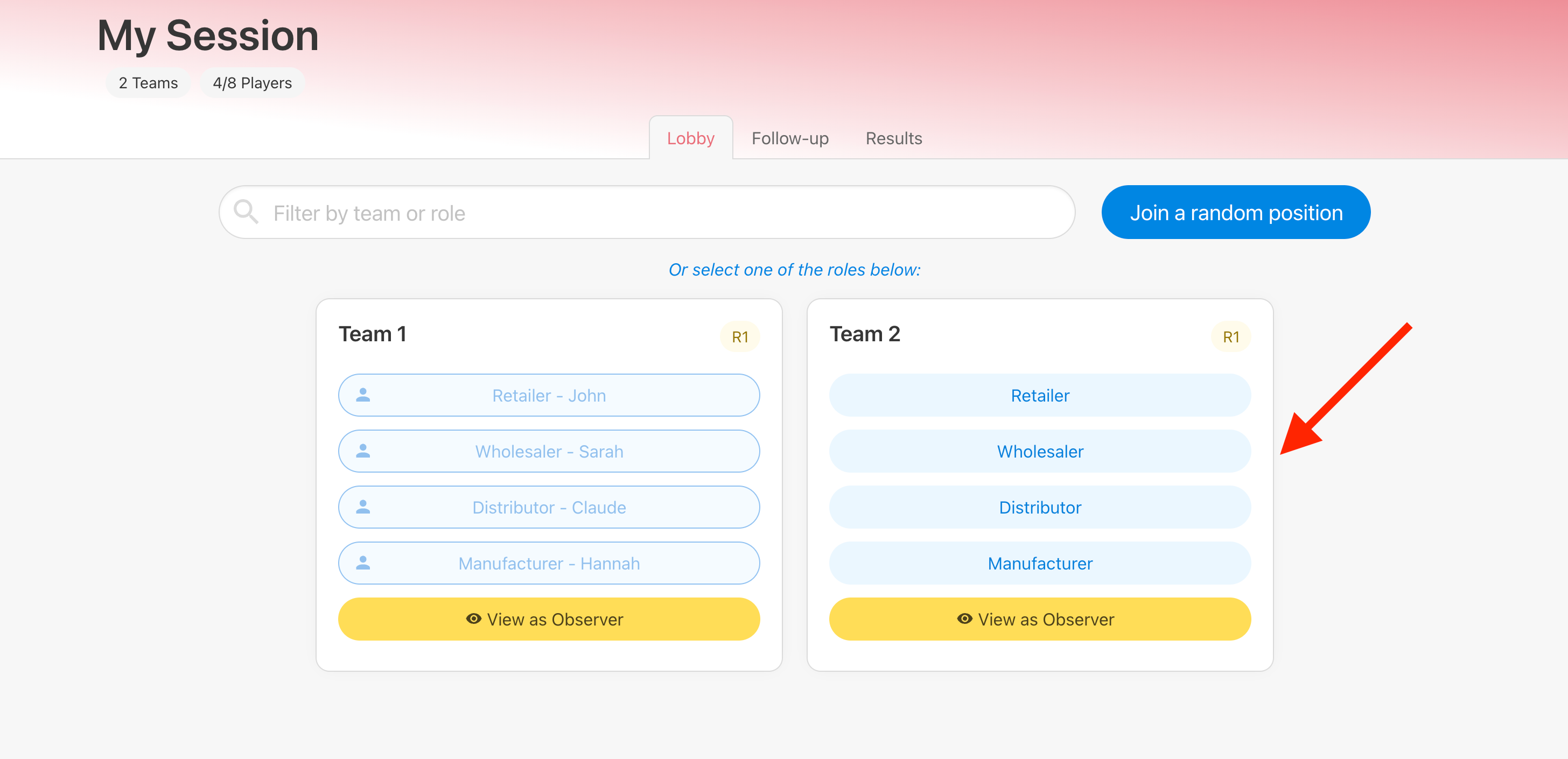
How it works in the lobby:

When all positions are taken, a new team is automatically created so the next player always has a spot. The session adapts to your actual group size — no manual intervention needed.

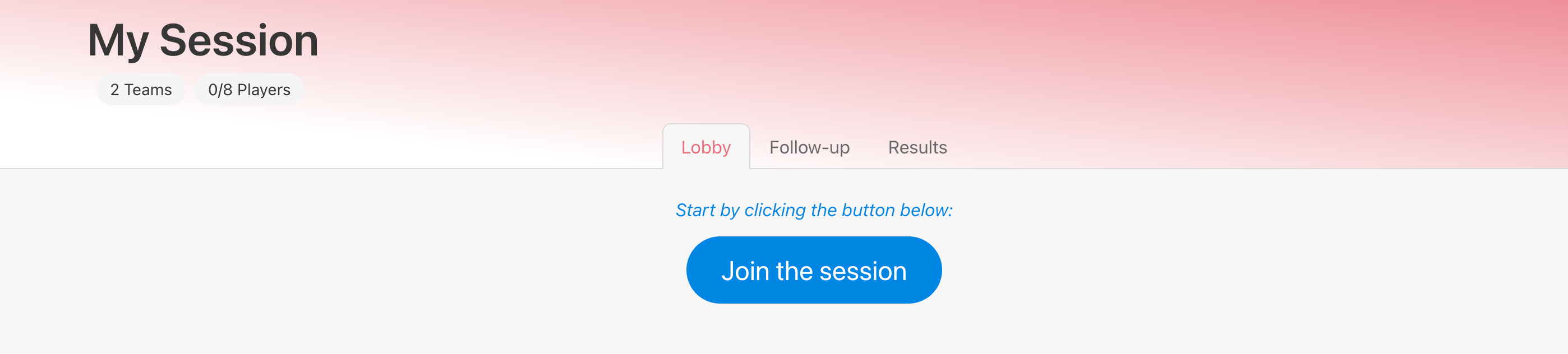
With auto-assigned roles:

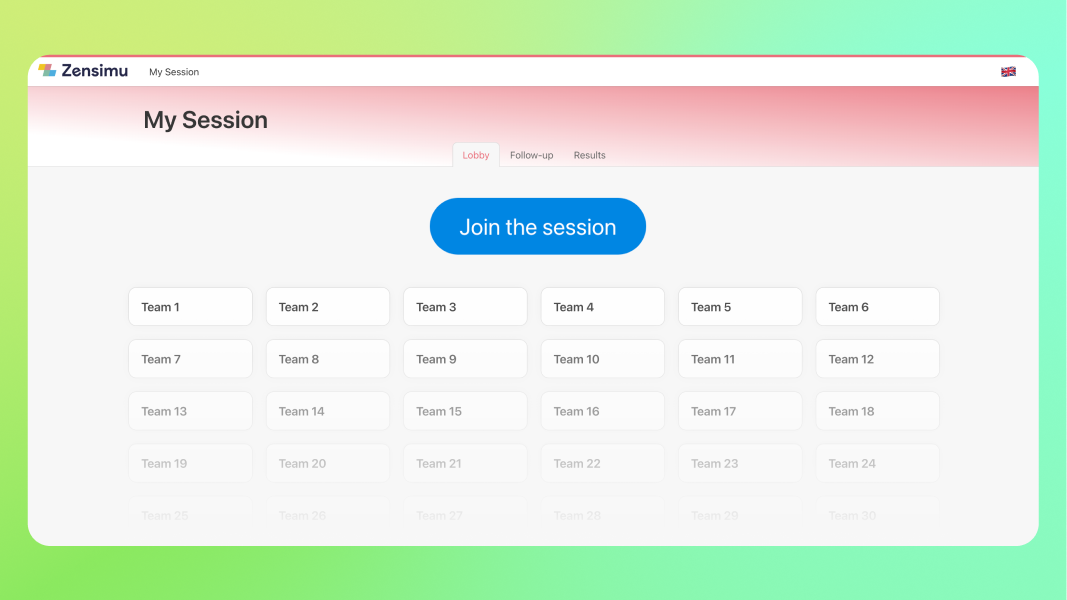
When the session lobby is set to auto-assign roles (advanced session settings), players see a single "Join the session" button instead of choosing a team and role. This is transparent for the player — additional teams are added on the fly and players are assigned to the newly created team.

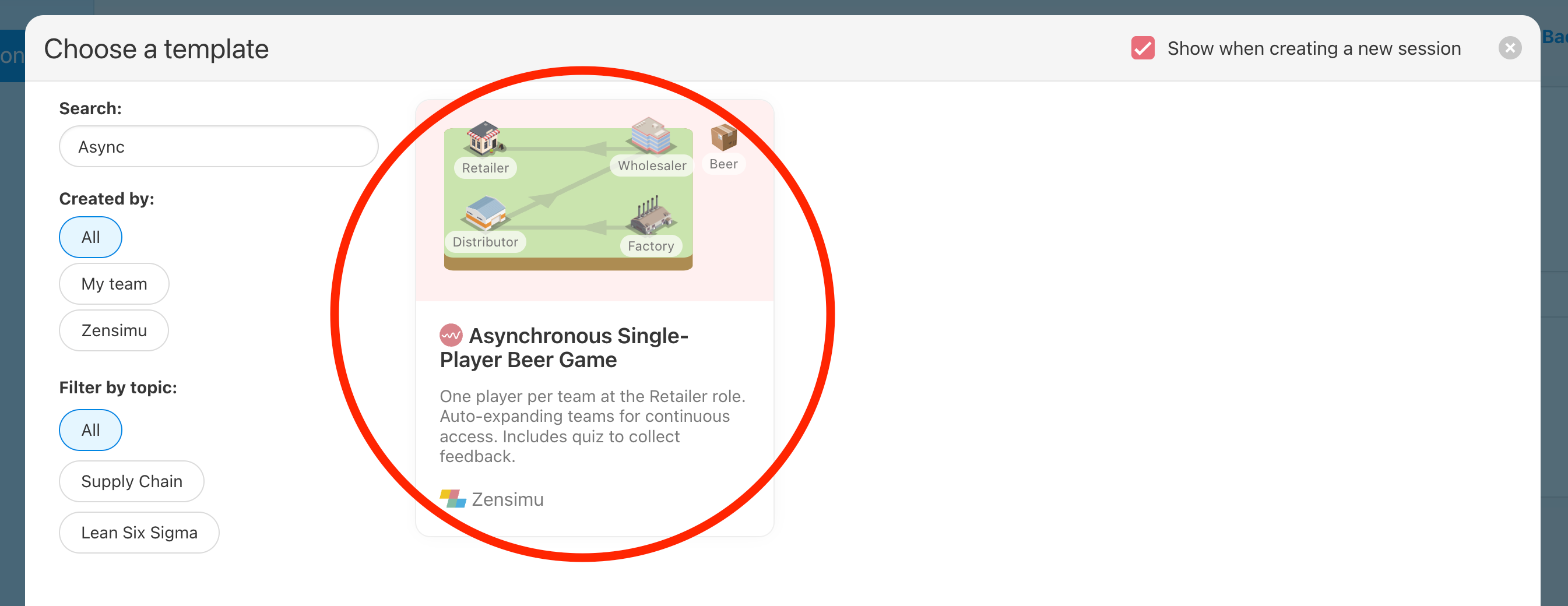
Asynchronous single-player games template

If you want to play using this auto-expand setting in a single-player / asynchronous format, we propose a Beer Game template with the corresponding settings:

March 31st, 2026

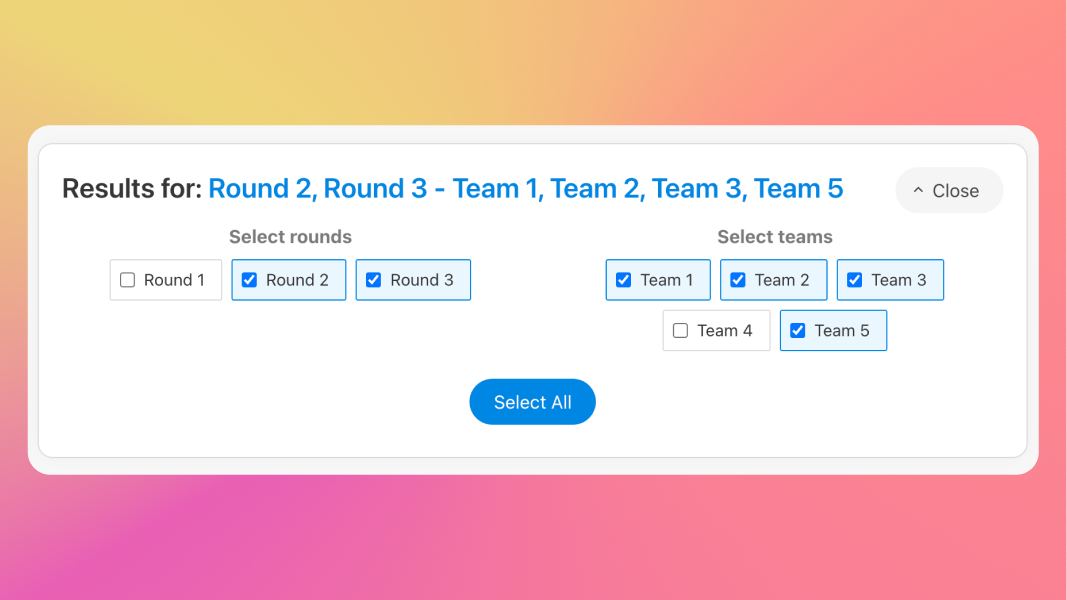
You can now more easily filter-out unwanted games from the session results and session responses (in case of post-game questions).

This can be for example to:

  • Remove one or several teams that were played by bots,

  • Remove an eventual first test round placed at the beginning of the session that shouldn’t be compared with others,

  • Filter-out a team that had very different results, messing with the charts scale.

March 9th, 2026

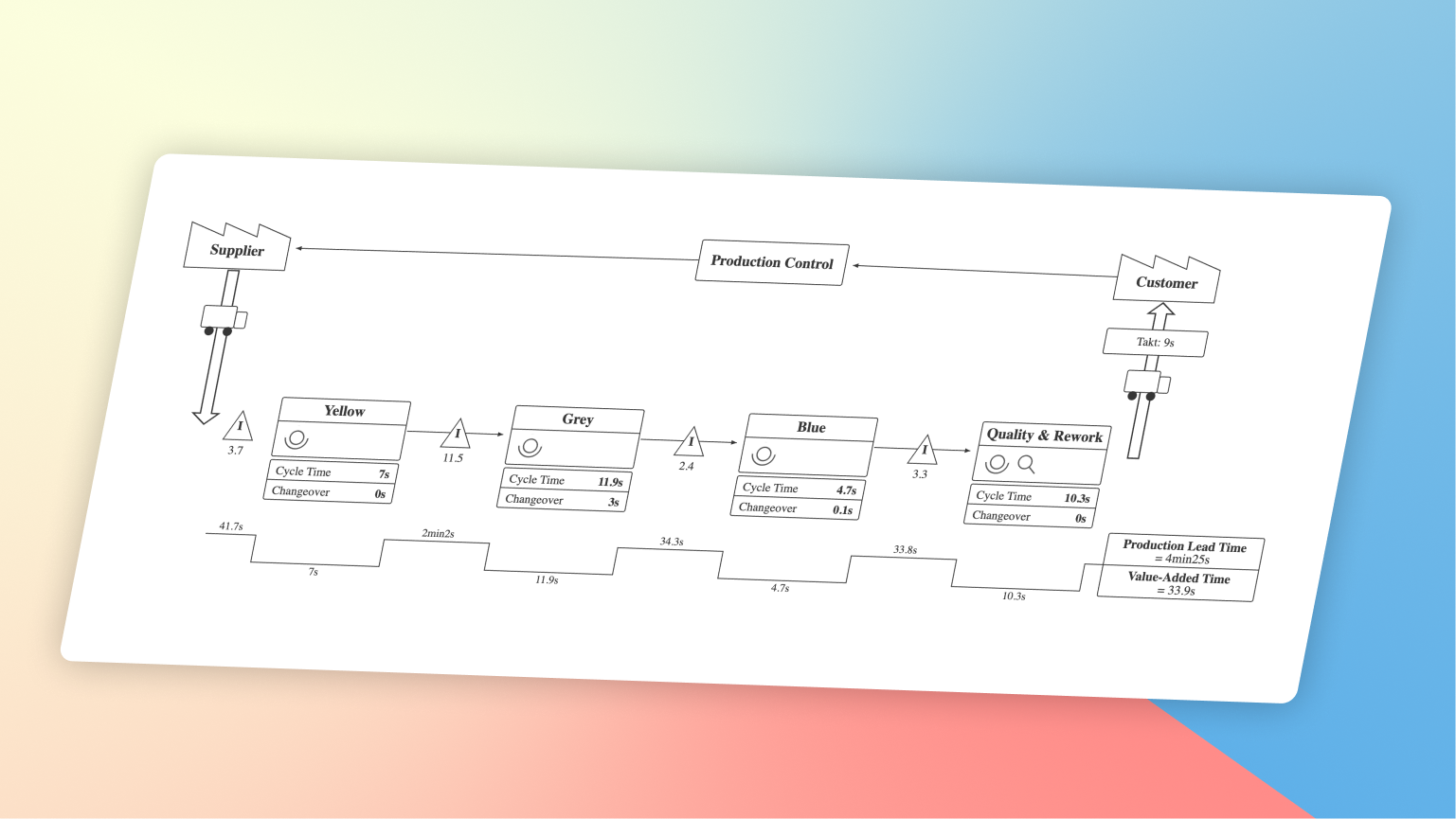
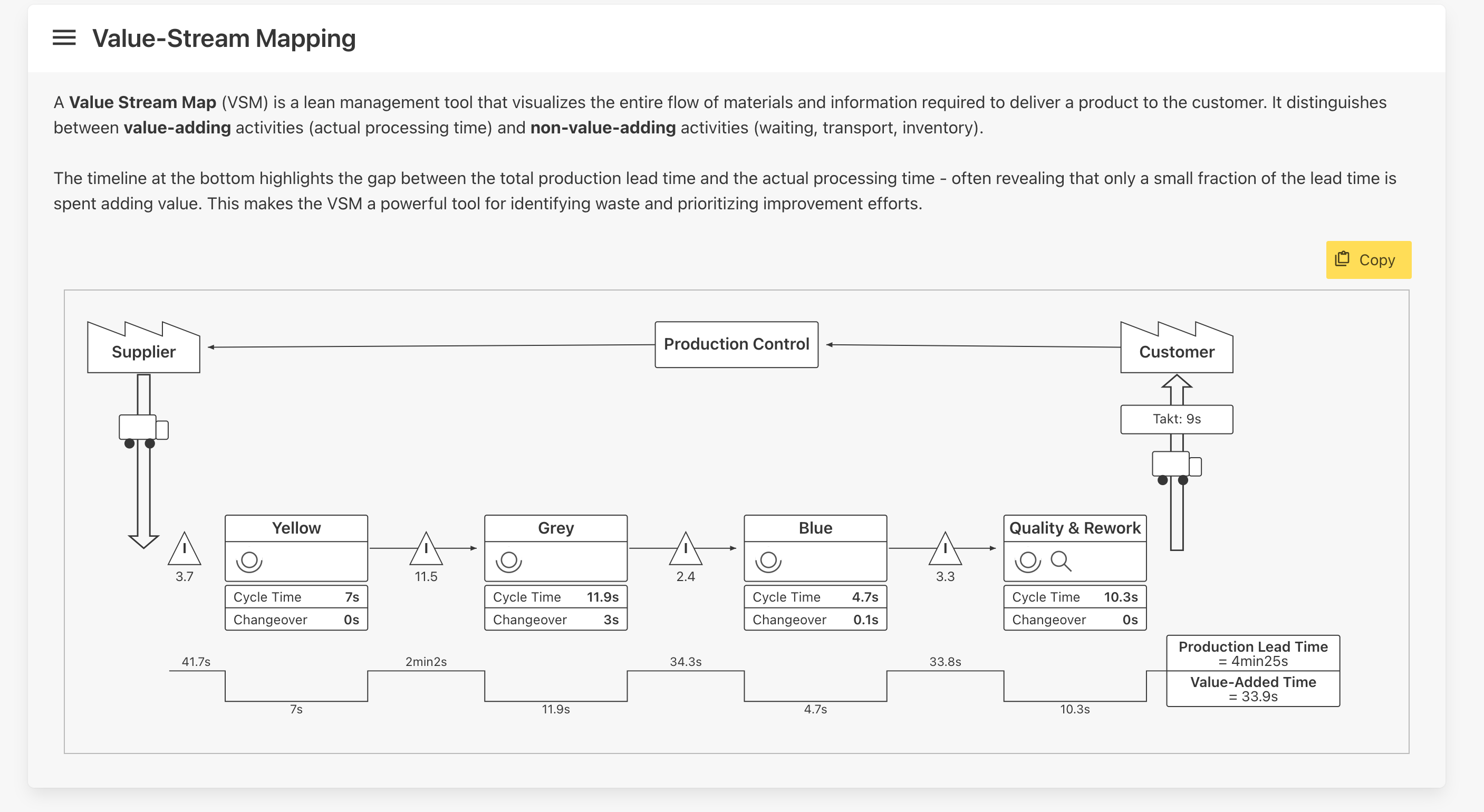
You can now optionally display an automatically-generated Value Stream Map (VSM) on the player debriefing page and in the session results.

The VSM is built from each round's actual game data, and its symbols adapt to reflect the improvements applied. For example, when Kanban is activated, supermarkets and pull arrows replace inventory triangles and push arrows.

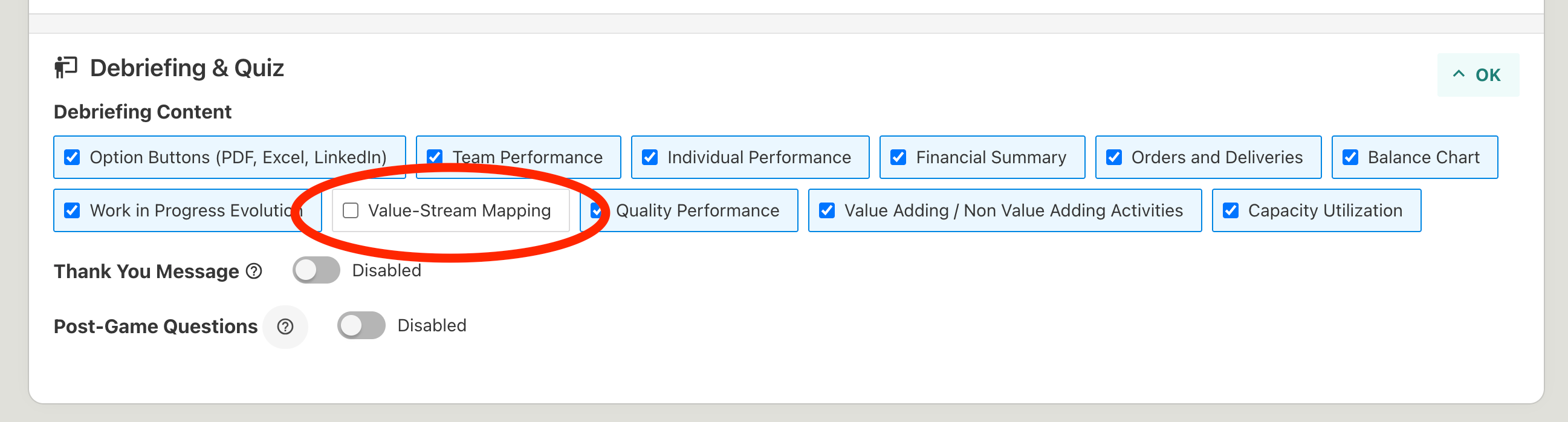
To show the VSM in the player debriefing, enable it in the round settings:

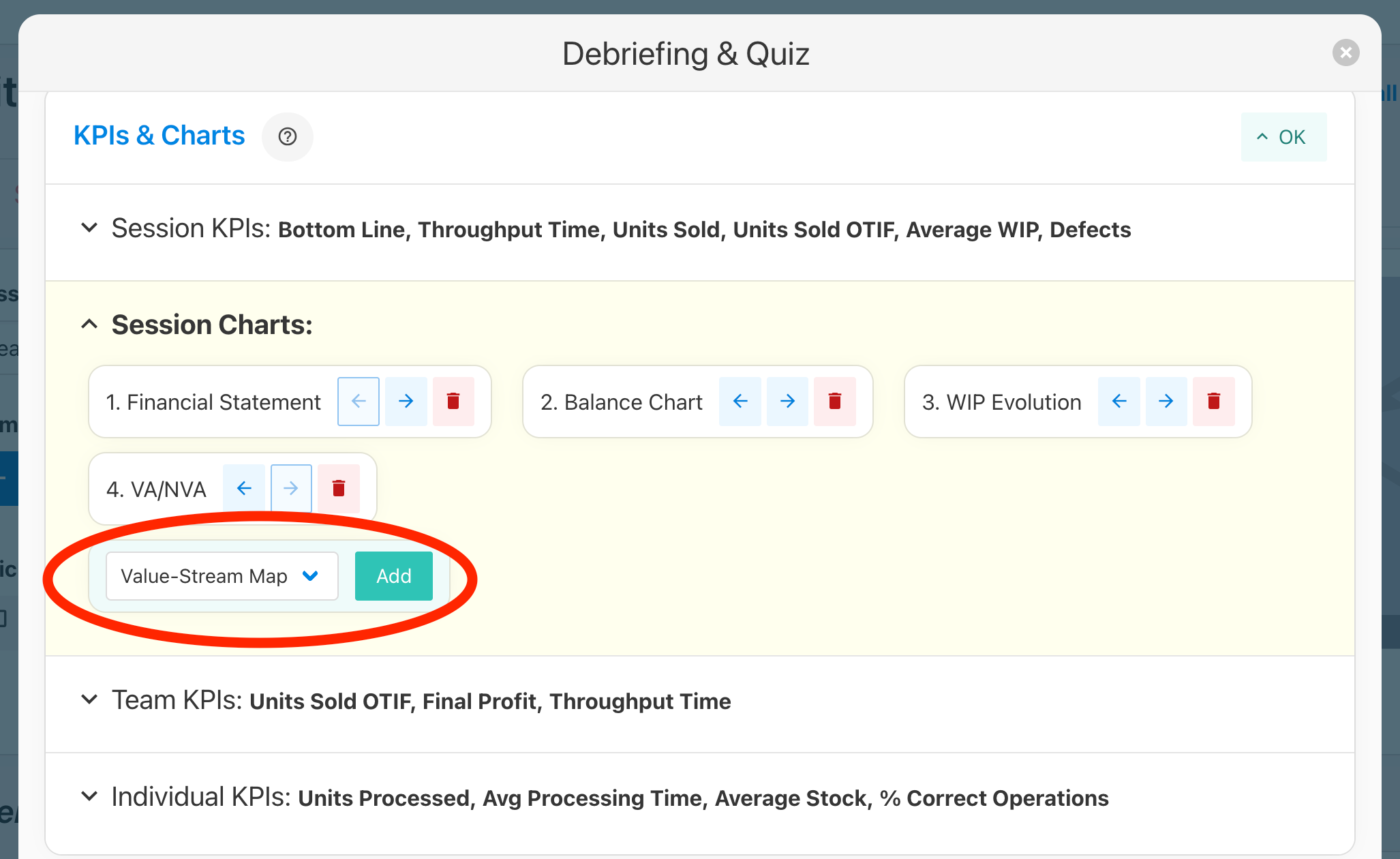
You can also display all VSMs side by side on the Session Results page by adding it in the Session KPIs & Charts settings:

Let us know what you think of this update, especially if you'd like to see additional VSM symbols or data in future iterations!

February 26th, 2026

You can now update the language for individual sessions directly within the Session Settings.

Participant View: For any participant joining the session, this session language is automatically applied to their interface.

Automatic Translation: When you change the language of an existing session, the platform will automatically attempt to translate the role names and messages. For example: 🇬🇧Wholesaler becomes 🇪🇸Mayorista, or 🇬🇧Yellow becomes 🇫🇷Jaune.

Custom Template Language: You can also set up a specific language for any custom session template. This allows you to easily maintain templates in different languages without needing to switch your main instructor profile language back and forth.

February 24th, 2026

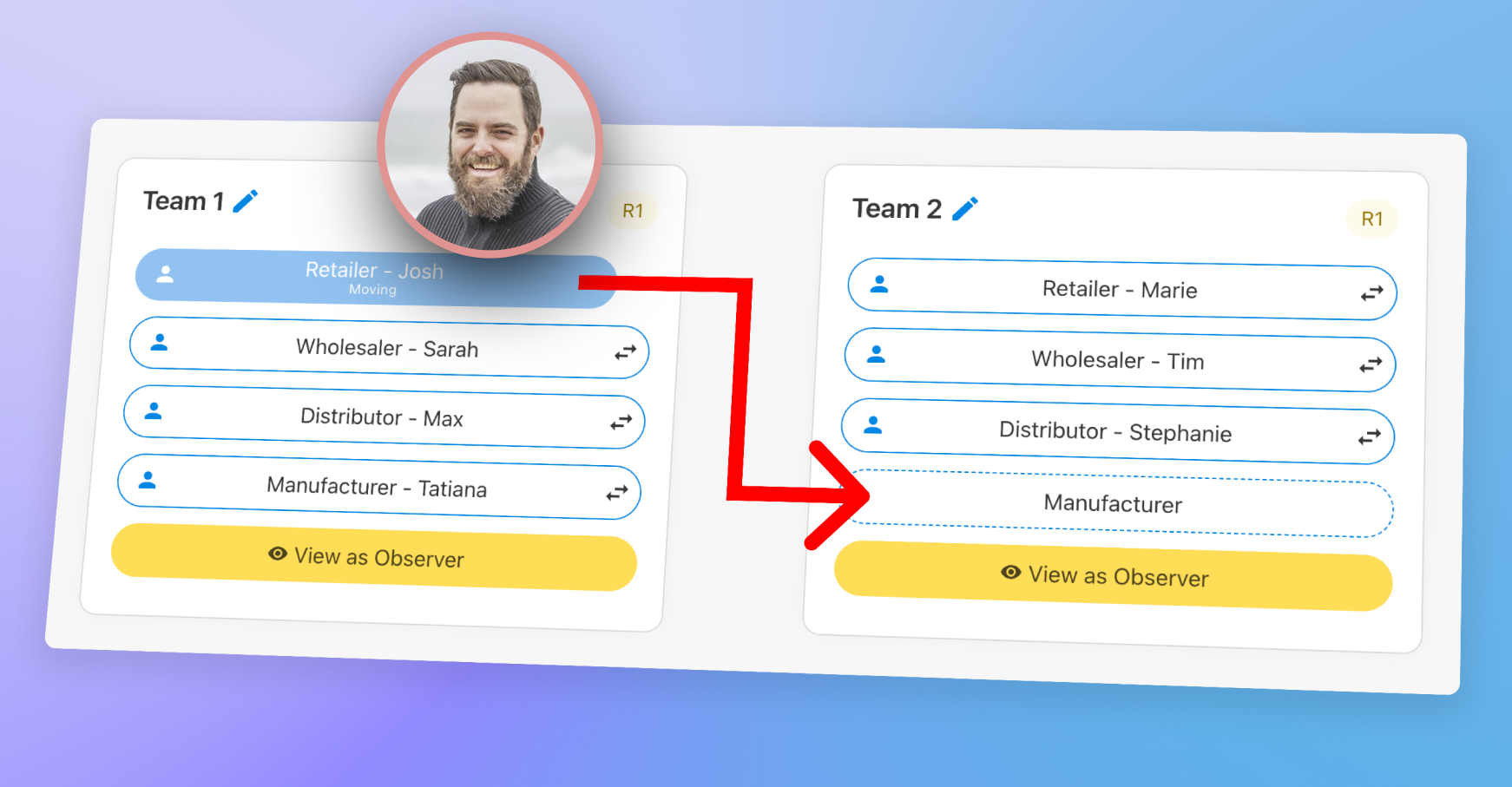
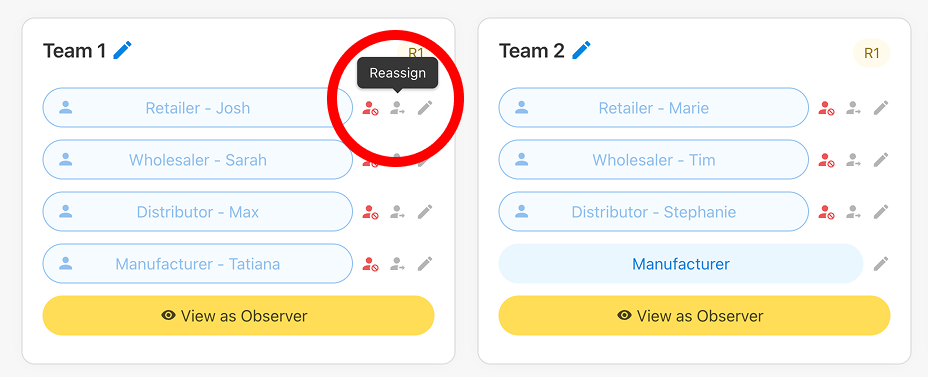
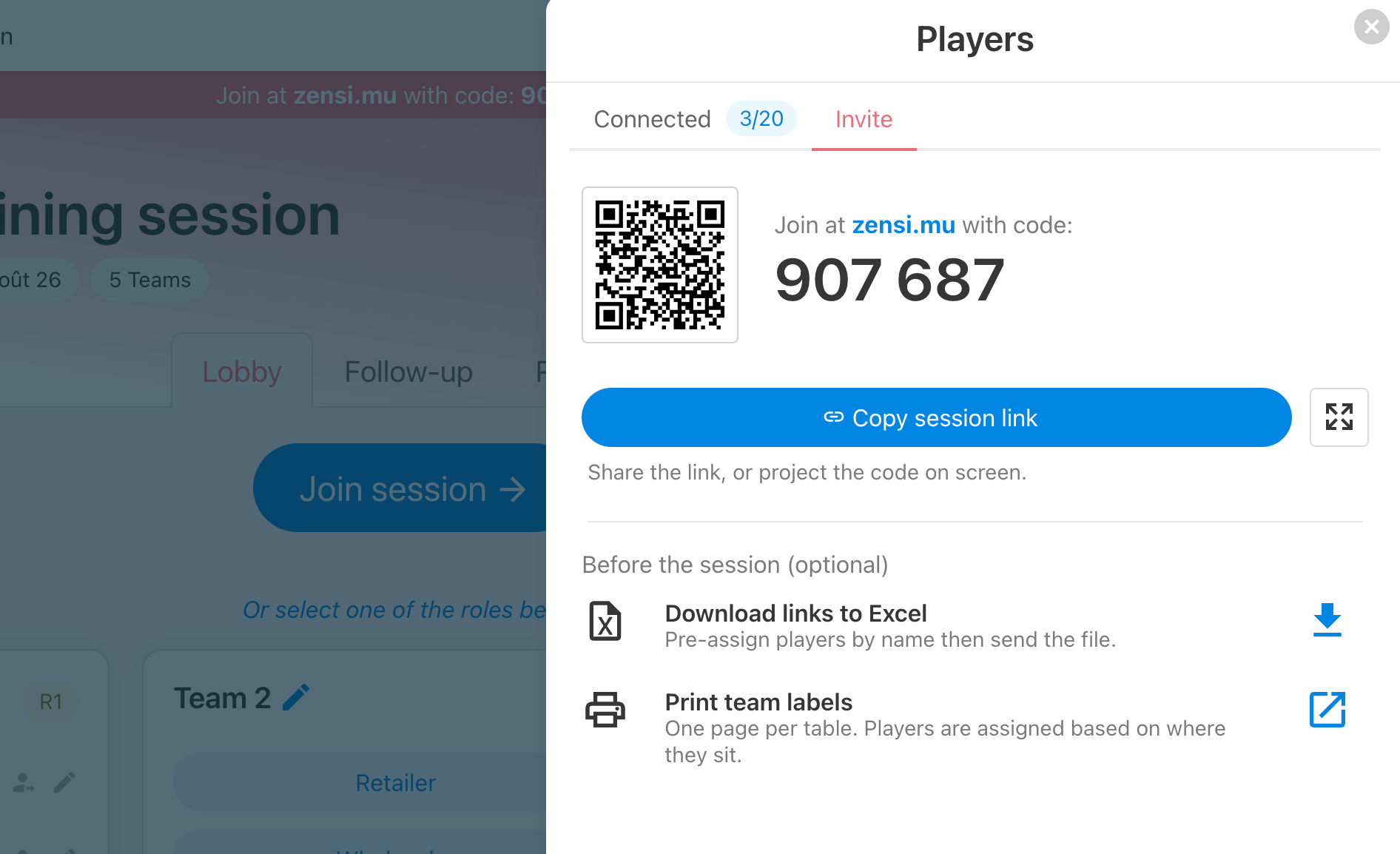
You can now enter player names directly in the session Lobby. This helps participants quickly identify which team and role to join.

Player names are also included on:

  • Printable Labels: Available via the Invite Players menu.

  • Excel Extracts: together with game links.

February 12th, 2026

You can now choose which KPI/Chart should be displayed on the Session Results page and which Team/Individual KPIs to be displayed on the Player Debriefing page.

This happens inside any Session or Template settings:

Access the session debriefing settings

You can then choose the selection and order for the below KPIs:

  • Session KPIs: comparison of metrics for the various team after each game round,

  • Session Charts: different types of chart analysis to go deeper in the evolution of each game,

  • Team KPIs: on the player debriefing, the main team metrics shown at the top,

  • Individual KPIs: on the player debriefing, the comparaison of metrics for each role

Find all the available KPIs and charts here:

https://docs.zensimu.com/article/55-debriefing-kpis-and-charts

KPIs and Chart configuration panel

January 13th, 2026

Until now, to be coherent with the Bullwhip Effect analysis, our Beer Game simulation was showing the order/material flows as follows:

  • Orders from left to right,

  • Material from right to left.

But for specific customers or use cases, you may prefer showing the flows in the other direction :

  • Orders from right to left,

  • Material from left to right.

It is now possible to reverse the flows in the game, from the Beer Game settings by toggling the below option:

image

Then, the onboarding views are updated as such:

image

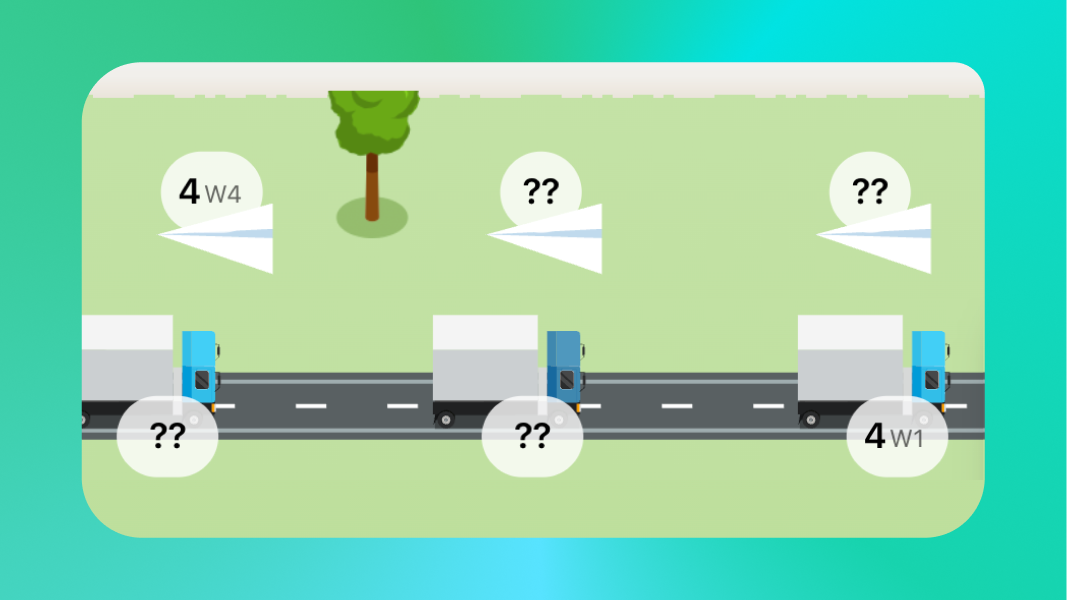
And the new turn animation is shown as such:

image